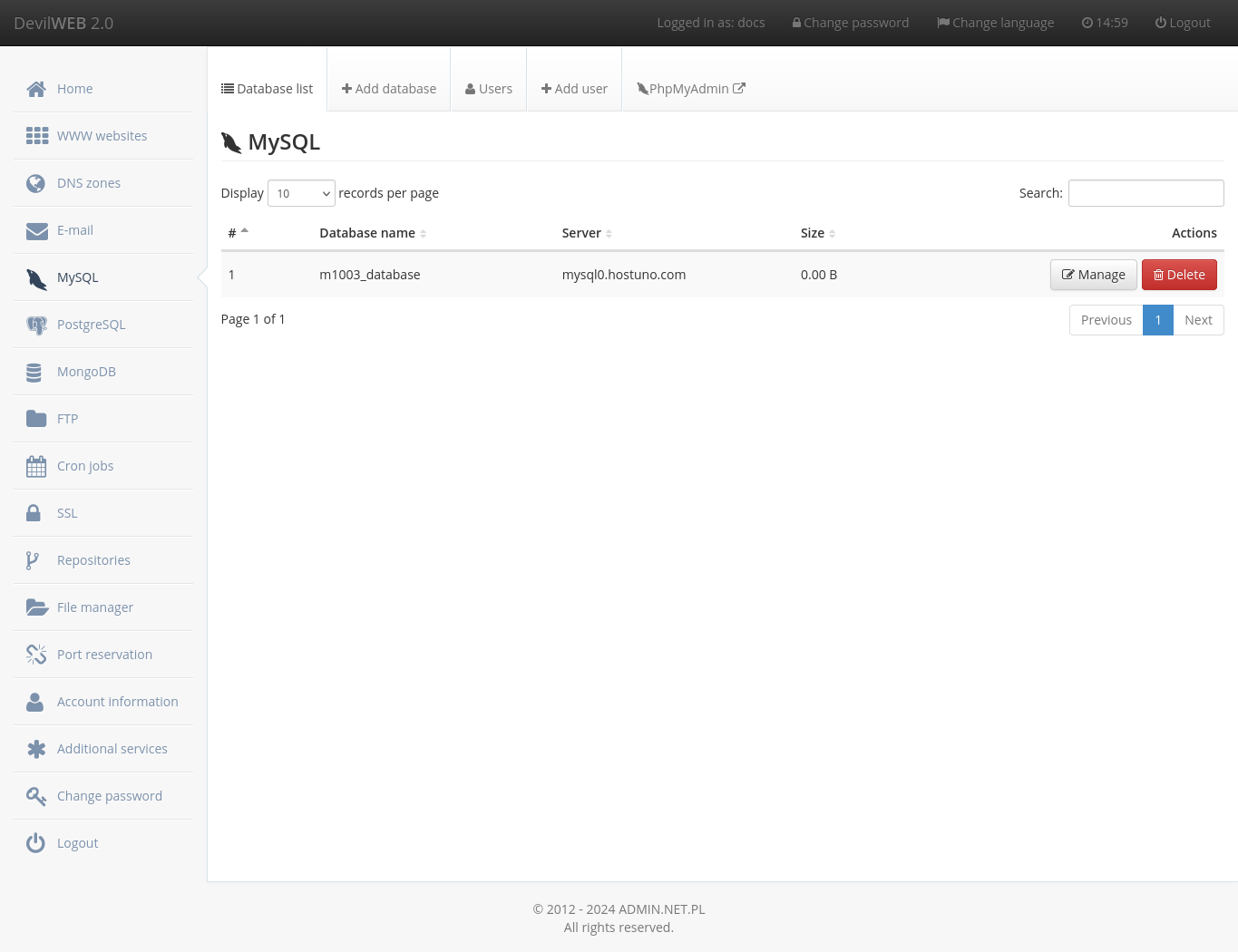

Managing databases efficiently is a critical skill for any developer or database administrator. One of the fundamental tasks in database management is listing all the databases available in a MySQL server. This process, known as Mysql List Databases, is essential for understanding the structure and organization of your data. Whether you are a seasoned professional or a beginner, knowing how to list databases in MySQL is a crucial step in database administration.
Understanding MySQL Databases
MySQL is a widely-used open-source relational database management system (RDBMS). It is known for its reliability, ease of use, and performance. A database in MySQL is a structured collection of data that is organized into tables. Each table contains rows and columns, which store the actual data. Understanding how to manage and interact with these databases is fundamental to effective database administration.
Why List Databases in MySQL?
Listing databases in MySQL serves several important purposes:
- Inventory Management: Knowing which databases exist helps in managing and organizing your data inventory.
- Security: Identifying all databases can help in implementing security measures and access controls.
- Backup and Recovery: Listing databases is essential for planning and executing backup and recovery strategies.
- Troubleshooting: When issues arise, knowing the list of databases can aid in diagnosing and resolving problems.
How to List Databases in MySQL
There are several methods to list databases in MySQL. The most common and straightforward method is using the SQL command SHOW DATABASES. This command retrieves a list of all databases available on the MySQL server.
Using the SHOW DATABASES Command
The SHOW DATABASES command is the simplest way to list all databases. Here is how you can use it:
SHOW DATABASES;
When you execute this command, MySQL will return a list of all databases on the server. The output will look something like this:
| Database |
|---|
| information_schema |
| mysql |
| performance_schema |
| sys |
| your_database |
This list includes system databases like information_schema, mysql, performance_schema, and sys, as well as any user-created databases.
💡 Note: The SHOW DATABASES command requires appropriate privileges. Ensure that your MySQL user has the necessary permissions to list databases.
Using the SHOW SCHEMAS Command
Another command that can be used to list databases is SHOW SCHEMAS. This command is functionally equivalent to SHOW DATABASES and can be used interchangeably.
SHOW SCHEMAS;
Executing this command will produce the same output as SHOW DATABASES.
Querying the information_schema Database
For more advanced users, querying the information_schema database can provide detailed information about the databases. The information_schema database contains metadata about all the other databases on the MySQL server.
SELECT SCHEMA_NAME
FROM information_schema.SCHEMATA;
This query will return a list of all database names stored in the information_schema database.
Filtering and Sorting Databases
Sometimes, you may need to filter or sort the list of databases to find specific information. MySQL provides various ways to achieve this.
Filtering Databases
You can use the LIKE operator to filter databases based on a pattern. For example, to list all databases that start with the letter ‘a’, you can use the following query:
SELECT SCHEMA_NAME
FROM information_schema.SCHEMATA
WHERE SCHEMA_NAME LIKE ‘a%’;
This query will return all databases whose names begin with ‘a’.
Sorting Databases
To sort the list of databases alphabetically, you can use the ORDER BY clause. For example:
SELECT SCHEMA_NAME
FROM information_schema.SCHEMATA
ORDER BY SCHEMA_NAME;
This query will return the list of databases sorted in alphabetical order.
Managing Databases in MySQL
Once you have listed the databases, you may need to perform various management tasks such as creating, dropping, or selecting databases.
Creating a Database
To create a new database, use the CREATE DATABASE command followed by the desired database name:
CREATE DATABASE new_database;
This command will create a new database named new_database.
Dropping a Database
To delete an existing database, use the DROP DATABASE command followed by the database name:
DROP DATABASE existing_database;
This command will permanently delete the database named existing_database. Be cautious when using this command, as it will remove all data within the database.
Selecting a Database
To start working with a specific database, use the USE command followed by the database name:
USE selected_database;
This command will set selected_database as the current database, allowing you to execute queries on its tables.
Best Practices for Database Management
Effective database management involves following best practices to ensure data integrity, security, and performance. Here are some key best practices:
- Regular Backups: Regularly back up your databases to prevent data loss.
- Access Control: Implement strict access controls to ensure that only authorized users can access and modify databases.
- Monitoring: Continuously monitor database performance and usage to identify and resolve issues promptly.
- Optimization: Optimize database queries and indexes to improve performance.
- Documentation: Maintain comprehensive documentation of your database schema and management procedures.
By following these best practices, you can ensure that your databases are well-managed and secure.
In conclusion, listing databases in MySQL is a fundamental task that every database administrator should master. Whether you use the SHOW DATABASES command, the SHOW SCHEMAS command, or query the information_schema database, understanding how to list databases is essential for effective database management. By following best practices and utilizing the appropriate commands, you can efficiently manage your MySQL databases and ensure data integrity and security.
Related Terms:
- show databases query
- how show database in mysql
- show database command
- mysql display databases
- sql server show databases
- list db in mysql