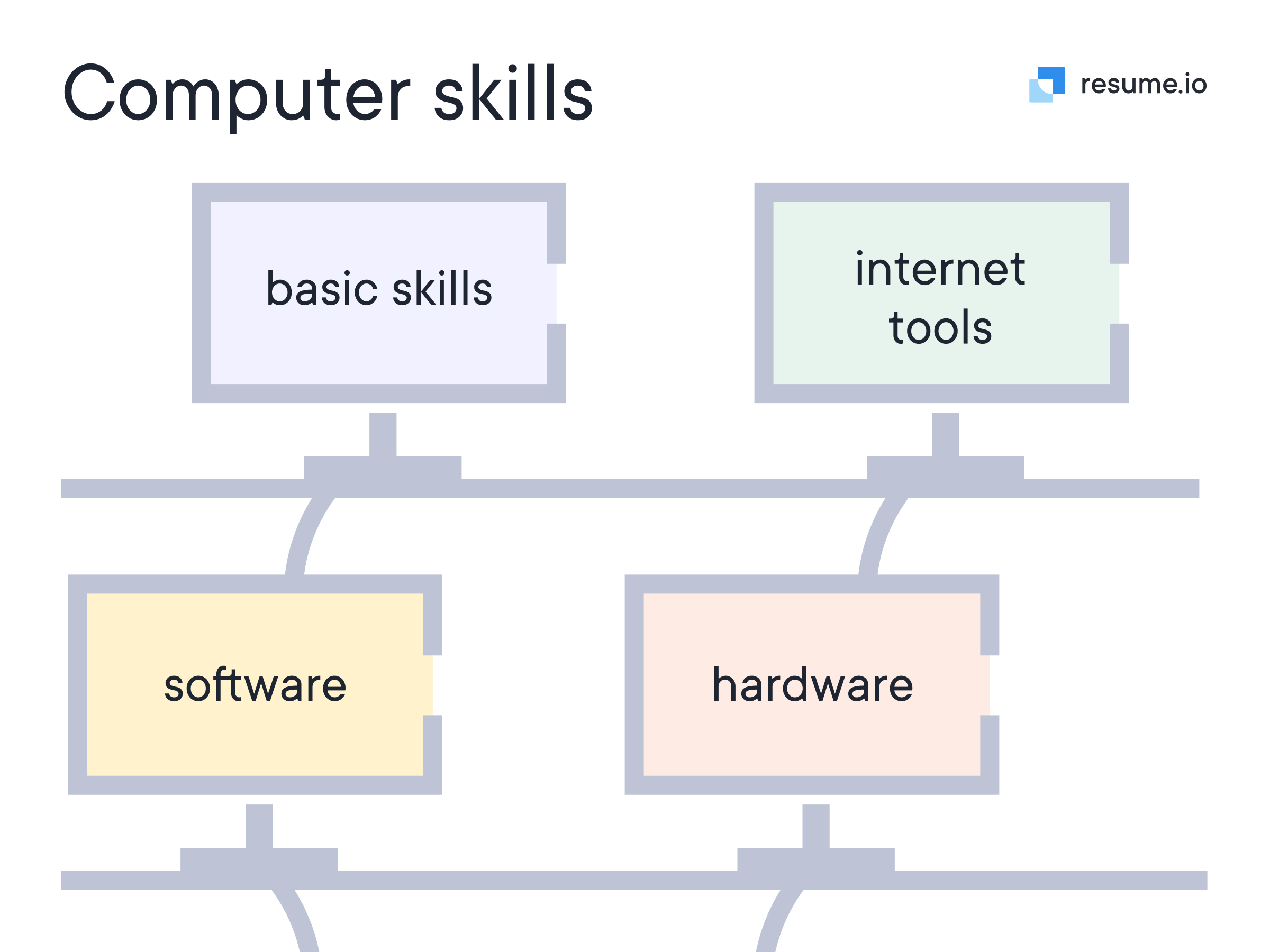

In today's digital age, having a solid foundation in basic computer skills is more important than ever. Whether you're a student, a professional, or simply someone looking to navigate the digital world more effectively, understanding the fundamentals of computer usage can open up a world of opportunities. This guide will walk you through the essential basic computer skills you need to know, from navigating the operating system to using productivity software and staying safe online.
Understanding Your Operating System
Your operating system (OS) is the backbone of your computer. It manages hardware and software resources and provides common services for computer programs. The two most common operating systems are Windows and macOS. Understanding how to navigate your OS is the first step in mastering basic computer skills.
Navigating Windows
Windows is one of the most widely used operating systems. Here are some key features and tips for navigating Windows:
- Start Menu: The Start Menu is your gateway to all installed applications and settings. You can access it by clicking the Windows icon in the bottom-left corner of the screen.
- Taskbar: The Taskbar is located at the bottom of the screen and provides quick access to frequently used applications and system tray icons.
- File Explorer: File Explorer is used to manage files and folders. You can access it by clicking the folder icon in the Taskbar or by pressing Win + E on your keyboard.
Navigating macOS
macOS is known for its user-friendly interface and seamless integration with other Apple devices. Here are some key features and tips for navigating macOS:
- Dock: The Dock is located at the bottom of the screen and provides quick access to frequently used applications and folders.
- Finder: Finder is used to manage files and folders. You can access it by clicking the smiley face icon in the Dock.
- Menu Bar: The Menu Bar is located at the top of the screen and provides access to system-wide settings and application menus.
Mastering Productivity Software
Productivity software is essential for both personal and professional tasks. Whether you're writing a report, creating a presentation, or managing a spreadsheet, knowing how to use these tools effectively can save you time and effort.
Word Processing with Microsoft Word
Microsoft Word is a powerful word processing tool that allows you to create and edit documents. Here are some key features and tips for using Microsoft Word:
- Formatting Text: Use the Home tab to format text, including font size, style, and color.
- Inserting Images: You can insert images by clicking the Insert tab and selecting Pictures.
- Saving and Sharing: Save your document by clicking File > Save As. You can also share your document via email or cloud storage.
Spreadsheet Management with Microsoft Excel
Microsoft Excel is a spreadsheet program that allows you to organize, analyze, and visualize data. Here are some key features and tips for using Microsoft Excel:
- Creating Tables: Use the Insert tab to create tables and organize your data.
- Formulas and Functions: Excel offers a wide range of formulas and functions to perform calculations and analyze data.
- Charts and Graphs: You can create charts and graphs to visualize your data by selecting the data range and clicking the Insert tab.
Presentations with Microsoft PowerPoint
Microsoft PowerPoint is a presentation software that allows you to create slideshows for presentations. Here are some key features and tips for using Microsoft PowerPoint:
- Designing Slides: Use the Design tab to choose a theme and customize the layout of your slides.
- Adding Multimedia: You can add images, videos, and audio to your slides by clicking the Insert tab.
- Presenting: Use the Slide Show tab to start your presentation and navigate through your slides.
Staying Safe Online
With the increasing use of the internet, it's crucial to stay safe online. Understanding basic cybersecurity practices can protect your personal information and prevent cyber threats.
Creating Strong Passwords
A strong password is your first line of defense against unauthorized access. Here are some tips for creating strong passwords:
- Use a combination of uppercase and lowercase letters, numbers, and special characters.
- Avoid using easily guessable information, such as your name or birthdate.
- Use a password manager to generate and store complex passwords.
Recognizing Phishing Scams
Phishing scams are attempts to trick you into providing sensitive information, such as passwords or credit card numbers. Here are some tips for recognizing phishing scams:
- Be wary of emails or messages that ask for personal information.
- Check the sender's email address for any discrepancies.
- Hover over links to see the actual URL before clicking.
Using Antivirus Software
Antivirus software protects your computer from malware, viruses, and other cyber threats. Here are some tips for using antivirus software:
- Choose a reputable antivirus program and keep it up to date.
- Run regular scans to detect and remove threats.
- Enable real-time protection to block threats in real-time.
Email Communication
Email is a fundamental tool for communication in both personal and professional settings. Knowing how to use email effectively can enhance your productivity and professionalism.
Setting Up an Email Account
Setting up an email account is straightforward. Here are the steps to create an email account with a popular provider like Gmail:
- Go to the Gmail website and click on "Create account."
- Follow the prompts to enter your personal information and create a username and password.
- Verify your account by entering the verification code sent to your phone or alternative email.
💡 Note: Always use a strong, unique password for your email account to protect your personal information.
Composing and Sending Emails
Composing and sending emails is a basic skill that everyone should know. Here are some tips for writing effective emails:
- Use a clear and concise subject line.
- Address the recipient by name, if possible.
- Keep the email short and to the point.
- Proofread for spelling and grammar errors.
Organizing Your Inbox
Keeping your inbox organized can save you time and reduce stress. Here are some tips for organizing your inbox:
- Create folders or labels to categorize your emails.
- Use filters to automatically sort incoming emails.
- Regularly delete or archive old emails to keep your inbox clutter-free.
Basic Troubleshooting
Even with the best basic computer skills, you may encounter issues with your computer. Knowing how to troubleshoot common problems can save you time and frustration.
Restarting Your Computer
Restarting your computer can often resolve minor issues. Here are the steps to restart your computer:
- Click the Start Menu (Windows) or the Apple Menu (macOS).
- Select the power icon and choose "Restart."
- Wait for your computer to shut down and restart.
Updating Your Software
Keeping your software up to date is essential for security and performance. Here are the steps to update your software:
- Click the Start Menu (Windows) or the Apple Menu (macOS).
- Select "Settings" and go to "Update & Security" (Windows) or "Software Update" (macOS).
- Click "Check for updates" and follow the prompts to install any available updates.
Running a Virus Scan
Running a virus scan can help detect and remove malware from your computer. Here are the steps to run a virus scan:
- Open your antivirus software.
- Select the option to run a full system scan.
- Wait for the scan to complete and follow the prompts to remove any detected threats.
Using the Internet Effectively
The internet is a vast resource of information and entertainment. Knowing how to use the internet effectively can enhance your online experience.
Searching the Web
Search engines like Google are powerful tools for finding information online. Here are some tips for effective web searching:
- Use specific keywords to narrow down your search results.
- Use quotation marks to search for exact phrases.
- Use Boolean operators (AND, OR, NOT) to refine your search.
Bookmarking Websites
Bookmarking websites allows you to save and organize your favorite sites for easy access. Here are the steps to bookmark a website:
- Navigate to the website you want to bookmark.
- Click the star icon in the address bar (most browsers) or press Ctrl + D (Windows) or Cmd + D (macOS).
- Enter a name for the bookmark and choose a folder to save it in.
Using Cloud Storage
Cloud storage services like Google Drive, Dropbox, and OneDrive allow you to store and access your files from anywhere. Here are some tips for using cloud storage:
- Create an account with a cloud storage provider.
- Upload your files to the cloud by dragging and dropping them into the cloud folder.
- Access your files from any device by logging into your cloud account.
Conclusion
Mastering basic computer skills is essential for navigating the digital world effectively. From understanding your operating system to using productivity software, staying safe online, and troubleshooting common issues, these skills will enhance your productivity and confidence. By following the tips and guidelines outlined in this guide, you’ll be well on your way to becoming a proficient computer user. Whether you’re a student, a professional, or simply someone looking to improve your digital literacy, investing time in learning these skills will pay off in the long run.
Related Terms:
- introduction to basic computer skills
- best computer skills for beginners
- beginner basic computer skills
- computer skills for beginners
- teach me basic computer skills
- computer skills you should know